Capturing doctor visits & Sickdays in org-mode
Using org-catpure in tables in org-mode, I simplified tracking sick days and vacations for timesheets, improving organization and ease of access.
Harmony of Tea and Coffee
I’ve been dividing my day into two parts recently: coffee AM and tea PM. Both have been giving me happiness recently, especially as the days get shorter and gray.
The coffee ritual takes place around 06:00. I have three options to choose from: the regular “American style” drip coffee (Mr. Coffee), pour-over (Chemex), or espresso. I usually have two kinds of coffee beans: espresso roast and specialty coffee that I try out, usually with the Chemex.
Depending on how much time I have and what I had the previous day, I make a jug big enough for me and my two partners, so each one of us has at least one mug of bean juice. I usually don’t add milk to pour-over coffee, as I like to taste it clean and appreciate the flavor. Later, I will use the same coffee in the Mr. Coffee and add just a bit of milk (usually almond milk, rarely oat milk, never cow milk) to top it off and chill it a bit.
I used to drink more coffee at work, but after a co-worker decided to stop drinking coffee, I got us “hooked” on tea. I also “blame” Alex Schroeder for my renewed love of green tea. I know a good store in Manhattan that sells high-quality loose-leaf tea, so I’ll get us a bag that would last for about six weeks. I make the trip downtown myself whenever I’m out of supply of Lung Ching, my favorite tea, to replenish my own stash.
Around 19:00 (that’s 7 PM), my desire for a hot (never boiling) cup of green tea kicks in. I then sit in my armchair in my room, relax and concentrate on my breathing, halfway meditating, and go through most of the mug. This usually helps me re-focus my thoughts on writing in my journal, wiki, or for my blog.
My coffee and tea routines act as an anchor for my day. As time passes and I keep at it, these are two “seeds” in my day from which I can grow whatever branches of tasks and projects I want to do. It’s a good way to evaluate time and do something nice for myself. Of course, I can’t always have my coffee and tea. I tried to “make up” for those before by getting tea or coffee outside, but usually I end up disappointed. Besides, there’s nothing quite like making a good cup of tea or coffee for yourself.
The colors of New Mexico
I returned from a trip to Albuquerque, New Mexico, and I miss it already. My mind is still running a mental rsync against the usual daily grind, and as rsync goes with large portions of data, this can take a while. One of the things I can bring up already though is the color theme in New Mexico, which was everywhere we went. It seems to convey the colors of the desert: sand to clay browns and yellows, green-gray for the cactus, the turquoise for the sky and water.
I grew up in a place where the desert was always nearby, and forests were small, usually limited to modest nature reserves of pine trees. Perhaps it was somewhat of this home-like feeling, perhaps it was the peaceful surroundings, or the way human-made structures blended into nature effortlessly. Whatever it was, I felt the colors resonate with who I am as a person and how I operate.
Naturally, Emacs came to mind. Coincidentally, I just discussed low contrast themes on Reddit before the trip, and received some interesting feedback. The discussion started after I realized I enjoy low-contrast themes over high-contrast ones. Indeed, the colors I now use in Emacs, inspired by nature where I went, give me more of that soothing feeling from New Mexico.
At this point, my “slightly modified” Gotham theme, which I discussed in the Reddit post, is heavily modified. The color descriptions inside the theme’s .el file don’t make much sense anymore. I’ve also noticed that org-mode is somewhat of an afterthought in the theme, with some of its key elements not defined at all. I’m wondering how hard it would be to create my own theme based on the colors I’ve already added.
Interestingly, for such uniformity of colors, I couldn’t find any official guide or even an explanation from an official source (if you happen to be from New Mexico or know of such a place, please let me know!) The only thing that came close was the New Mexico University branding guide.
The price of Privacy
When I started researching privacy more seriously, I didn’t know what I was looking at was the face of a forlorn path that seems to go nowhere. I picked it up as a challenge, and within a few days it became clear that privacy is a journey of hard sacrifices.
When I asked for help on Reddit’s privacy community I was blocked from posting because my freshly-created account specifically for this purpose was too new and thus, too suspicious. It was just one stop of many I’ve made in the last two months. Article after article from Medium to Lifehacker was filled with beginner tips like “use VPN” or “search with Duck Duck Go.” As I kept digging deeper, looking for more specifics and advanced techniques, the more it seemed that the internet I use every day suddenly had an end. A wall.
Everything on the screen had a sense of purpose. I was supposed to follow the answers in front of me. Buy a Visa gift card with your credit card; submit your phone number to get a discount; surrender your verified email address to chat with an agent. Not a single website gave additional options. Everywhere I looked, I had to give up a piece of my privacy or lie and hope for the best. I chose the latter option whenever I could. The feeling that I was doing something wrong intensified.
Then there was the loneliness. I haven’t logged into Facebook for years. I stopped using Twitter last year, and with it, I stopped following trends and celebrities in my industry. Most recently, I stopped using Instagram and lost touch with those who like my photos, a window to the outside world, especially during the pandemic. On the other hand, getting in touch with me became more difficult since I insist on less popular apps that no one wants to download. When I try to explain why, it often feels like I’m speaking a different language even with those close to me the most.
This is the price of privacy. I am almost at a breaking point, and I’ve only started. I understand now why there is so little real information about true privacy. Those who stay out of the familiar platforms live in the shadows. It’s not that they hide, but by resisting selling their lives away they can’t reach us or we them. You can’t Google them, friend them on Facebook, or follow them on Twitter. They don’t exist to us, criminal by association with the cryptic “dark web.”
So much of what we do, what we are, is not even ours to share but instead borrowed, hosted somewhere unknown to us, supplied only if we sign an agreement to give ourselves up. And we can’t be bothered to know. After all, when was the last time you read Facebook’s terms of service? Twitter’s? Google’s? Apple’s?
I wish I could tell you this is all a cheap Matrix ripoff. The problem is that I can’t unlearn what I’ve learned or unread what I’ve read. Instead, I’m figuring out how to bend the rules just enough to be more than a sheepish user. I’m starting to see the invisible walls of the digital cell.
My Impressions of The Pixel 4a
I received my new Pixel 4a on Friday before last, and after a week, I can say this with confidence: this is the best smartphone Google has ever made. I also hope it will be the last phone I buy from Google.
If you want to read more about the Pixel4a, There are plenty of reviews on the web, both written and videos (here’s a recent in-depth one from arstechnica, and a quicker video from the Verge). Here I’m going to focus on why I like this phone.
Let’s start with the obvious: the price. At $350, Google is back where it has always been best: supplying top tech at a price that doesn’t twists people’s arms. At hard times like this, with folks losing their jobs, this is a welcome change from the $800-plus flagships.
The Pixel 4a is not a statement of class like the iPhone, and it’s far from delivering the latest and greatest. That’s fine because I don’t need the latest and greatest, I need a damn phone. The iPhone 8 Plus, which I have for work, still sells for about $500 today(1)
The iPhone 8 Plus is too heavy and too big, yet somehow the screen on it is smaller than the one on the Pixel 4a. This makes a big difference. The Pixel doesn’t fall out of my hand when I pick it up like the iPhone 8 Plus does. I can reach the corners of the screen without doing crazy hands acrobatics. It doesn’t stick out of my pocket for everyone on the street to see. It fits into my pouch when I go for a run. These may look like insignificant details, but the overall experience is liberating.
As a bonus, the pixel comes with an earphone jack. I can carry my FLAC files with me on the phone and listen to my higher-end earphones at the office now. The Bluetooth headphones are good for meetings and streaming music, but if I want to get lost in some good stuff, I need an audio cable(2). It’s also nice to plug in my good set and charge my phone at the same time when I’m at my computer.
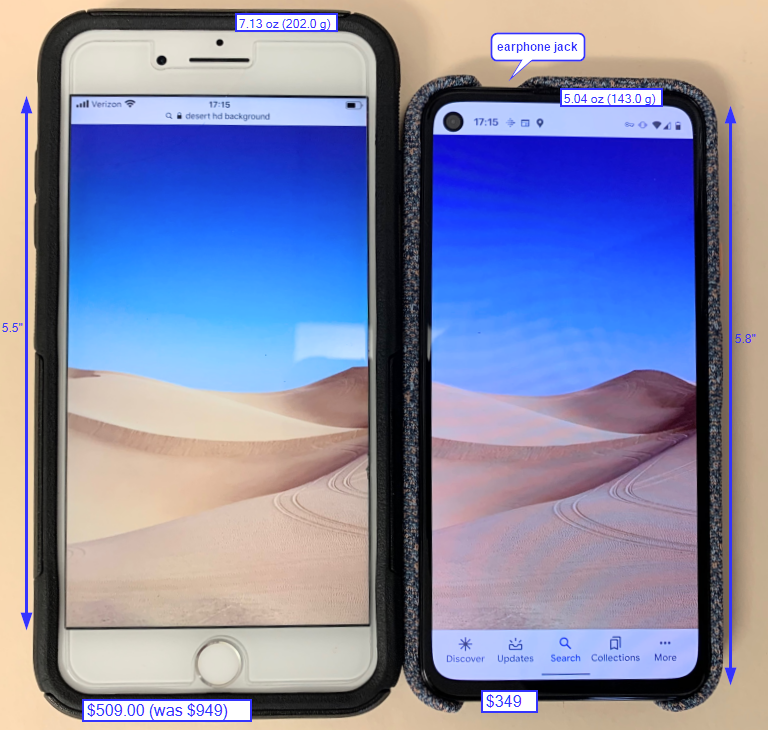
I know the argument for/against Pixel phones is all about the camera, the better battery life, lack of better water resistance, Android sucks/rules, blah blah blah. I don’t care about those. While I don’t particularly care about looks, the Pixel does look nice. The edge-to-edge screen without bezels, the crisp image, and thefabric cases to match, it puts the iPhone in perspective.
I used to marvel at Google’s utilitarian vanilla Android and scoff at anything that isn’t a pure Android experience. Now, after a couple of years in IT working with Android, iOS, macOS, Windows, and of course Linux, I’m moving forward.
It’s called GrapheneOS. A mobile OS that strips the Pixel from what makes it Google. It’s a mobile OS built for privacy geeks who want a smartphone that doesn’t call back to the mothership. I want to wipe this phone clean and see if I can live without Google on me all the time.
But I’m cheating. I still have my iPhone. I’ve decided that all the apps that need to “spy” on me can be on my work phone. Bank app? I don’t mind if my job, which pays my salary, sees my bank statements. Google Maps? If I travel, I can’t leave work completely behind anyway. Phone calls? I barely call people anymore and most of my contacts are on iPhone, so I don’t mind using Facetime. Everything private however will live on the Pixel. My org notes in Orgzly, my contacts on Signal(3), my media, passwords, etc.
Right now, this is a challenge I want to take. I still have my old Pixel 2, and I’m planning to use it first as a “demo” version to see how this works out - or fails. By the time I’m done, I believe GrapheneOS will already have a working Pixel 4a version.
Why? Well, why not? This blog is called the art of not asking why, after all.
(1) This price came up for a refurbished iPhone 8+ on Apple’s website.
(2) I find that I don’t need my amplifier when I connect directly to the jack. With the USB-C dangle, which looks terrible and prevents charging at the same time (so the phone slowly runs out of juice), I need to use an AMP as well. Visualize this: an audio cable from the headset goes into an adapter, which goes into the AMP, which goes into the phone. I want to say there’s a slight difference in sound quality without the amp, but I don’t have a professional-grade headset to detect that sort of thing.
(3) This will be tricky since Signal is not exactly open source, but I’m aware there’s a way to install the APK anyway. Actually, Signal puts out its APK on its website.
Standing Desk
At first, I only noticed an increase in back pains. Then, there was general restlessness that didn’t allow me to concentrate on long-term projects at work. There was a nagging feeling of “I miss something” coming from my body, not so much my brain. Then, one day at the office during my on-site duty, I pulled up my screen and keyboard to its standing position, and it hit me: I need to stand.
In the past, a standing desk was a gimmick I contributed to yoga-types and others who had back or posture issues1. When a co-worker left us for another place, I adopted his Ergotron Workfit because it had two keyboard trays which I needed (I work with a Mac and a Windows workstation at the same time). I thought standing up would be a nice “perk” since I often just enjoy walking around or talk to people while standing.
What I didn’t know is that shifting my weight helped me concentrate and became a big part of my morning ritual. The habit of standing up in the morning when I get to the office was so hard-wired that even my manager said at one point he couldn’t talk to me before I pulled up my desk to a standing position and prepared my oatmeal cup, another ritual of mine.
The Research
The research was fun. A full-standing desk at home was out of the question because of its price and the fact that I already had a nice IKEA desk that fit my NYC-size room nicely. I knew I was looking for a standing desk converter, a fancy term for a keyboard-mouse-screen elevator. Indeed, I first aimed for cheap options from Amazon because I didn’t think a converter would be more than that.
My go-to website for information about quality products when several options are offered is the New York Times’s Wirecutter. While it tends to lean more toward expensive things in general (it feels like sometimes they do it just so they have a “budget option” to add to the review), it is a good place to get a general idea. Their best standing desk converters review was helpful.
At the time, the investment seemed like a lot of money for something I could just use a bunch of boxes for, so after reading the full article (you need to keep scrolling past the “The Research” part), I carefully did some Goolging Duck-duck-going and stumble unto Work While Standing. This website seemed like a shallow review site full of ads at start, but as I read more into their reviews, I saw that wasn’t the case. Their “What is a Standing Desk Converter?” introduction was very informative and showed me what each type of converter does, what it’s good for, and why sit-stand desks tend to be more expensive…2.
The information on both sites helped me realize a sit-stand converter is a three-in-one solution for me:
-
My ultra-wide monitor’s3 stand that came with it was a piece of junk. It barely supported the monitor’s weight, and I was already searching for a better stand that wouldn’t let it wiggle and wobble at every slight movement (including typing just typing on my keyboard!)
-
I realized that, as Wirecutter noted, the screen does need to be higher up when you stand than when you sit down (try it - you’ll see that when you stand, there’s more space between your eyes and your typing hands). This has been an issue that has been bothering me for some time in the office.
-
My narrow IKEA desk and room setup meant I didn’t want a desk that would push forward as I raised it. I also didn’t like how the Z-shape legs of the other converters looked on the desk, blocking off the area under the desk in its upper position like a cage. I wanted something cleaner looking.
from there, it was easy to conclude that the Kangaroo pro model from Ergo Desktop was right for me: it included the extra feature that allowed the screen to move independently from the tray, but at the same time, I didn’t need the Elite series which included an electric motor for it.
The final tune-in was the measurements: it turns out that the Kangaroo Pro Junior’s depth was the perfect fit for my desk; the bigger Pro would be too wide, with its tray pushing out toward my chest and covering the drawers of my desk. The desk had a clean, industrial look to it that I liked. I also found a coupon online just before I placed my purchase, reducing the cost of the desk by $20. Shipping was free of charge. Nice.
Set Up and Some Hacking
The Junior Pro came in a large, flat, heavy box, kind of like a flat TV screen. Because I don’t trust USPS to ship anything to my home address (that’s a long story), I shipped it to my office instead and took it home from there. I’d say I’m in a rather OK shape, and I handled the box OK, but I wouldn’t recommend carrying the box a long distance or up the stairs without help. It was just heavy enough to be a bit much.
Assembly was easy enough. There weren’t many parts, and the instructions were clearly printed in full colors (you can also view the PDF on their website). The only tough part was the monitor: because of its size, it was difficult to hold it with one hand while adjusting the stand so the screw holes fit just right. This is also when I ran into more problems with my screen.
As it turns out, my ultra-wide monitor has its VERSA screw holes a bit lower than they should be. The Kangaroo’s screen-tilt lock doesn’t provide much friction as is, and it wasn’t possible to lock the screen at a straight angle. It kept tilting downwards, hanging on the adjustable tilt screw. Another issue was the screen’s HDMI socket location, straight in the back, where it hit the metal shaft of the stand. This is a known issue with the monitor, judging from the complaints on the Amazon page, where people ran into this issue while trying to mount the monitor against a wall. In short, this is a problem with the monitor, not the desk.
I fixed the problem temporally by placing Styrofoam between the screen’s mounting stem, which was sticking out a bit, and the metal shaft of the screen raiser. I contacted Ergo directly about my issue and got a reply the next day: they were shipping me another screw which was supposed to replace the tilt break. After playing around with it, I found that it was better to use the screw they sent as a stopper, which fit in one of the grooves of the metal shaft than a replacement for the break, as they suggested. This locks the screen tilt in one position, but I’m fairly comfortable with how it stands now, and I don’t need it to move. The result is a wobbly-less typing environment both for standing and sitting.
A few More Words
Getting a standing desk converter is easily the biggest upgrade for my work environment in recent years. At start I didn’t want to spend so much money on something that seemed to be a “perk,” but the quality of the product, the way it makes the whole room look, and the inviting feeling I get every morning when I stand at it with my fresh cup of coffee are priceless. Still, this is a highly personal choice. I can’t recommend this standing desk solution for everyone: too much depends on individual quirks, measurements, budget, etc.
Of course, This post wouldn’t be complete without praising org-mode again. A picture is worth a thousand words, so here, have a look:
You’re only seeing half of it since my thoughts (under the closed headers) are too long to fit here. Org-mode made it easy to write down details while browsing and reading, kept me organized with my thoughts, and prevented me from remaking conclusions.
Footnotes
1: An interesting irony, I realize: I am one of these folks myself. 2: That’s because sit-stand converters effectively include a stand for the screen. Other converters are essentially just a raised tray on which you also put the screen with the keyboard and mouse; with sit-stands, the screen mounts to the back. Better models include independent raising mechanism. 1: Probably another post in itself, an ultra-wide monitor is another must-have in my setup today. It is not as heavy and messy as having two monitors while providing much-needed work space, not to mention good gaming experience (which is horrible on a dual screens in my opinion).
A New Camera Instead Of Pixel4
When Google announced the new Pixel4, I was excited to get a new phone with an improved camera and enhanced night vision. However, not even a week later, I ended up with a new digital camera instead. I am very happy with my purchase and the new things it brought into my life.
One of the important lessons you learn working in IT is not to jump the gun. You always want to stay a generation behind with maturity and support. When it was time to trade my current Pixel2 for the new Pixel4, my urge had already taken a hit from the cost. The more I waited, the more problems surfaced with the Pixel4, like the face unlock issue or the not-exactly 90ghz display. The list of “mehs” with the Pixel4 doesn’t show signs of slowing down. After a couple of weeks like this, my excitement transformed to “So, why do I want to give Google a grand for, exactly?"
I realized I was pushing myself toward the Pixel4 because of the camera. I’ve been enjoying my growing photographic collection and the artistic escape I get in my otherwise fully tech-related life.
So if all I want is a better camera and better photos, why not just get a good camera without a $800 phone attached?
Within minutes, I was already watching a YouTube Video about the four different types of digital cameras (by the way, Dave McKeegan has a bunch of very well-made explanatory videos about photography). Hours turned to days as I swallowed everything I could from YouTube and photography websites. When I felt I got an idea of what would work best for me, which was a generic-purpose mirrorless camera, I settled on the Sony a6000.
My decision was based on a couple of factors:
- I wanted a cheap camera that was still capable of taking good photos and would allow me to continue to learn. Likewise, I wanted a popular camera with a lot of support and tutorials available.
- I wanted a light, compact camera that would be easy to carry around and fit in my backpack so I could take it anywhere. I didn’t want to worry about carrying a heavy bag, which would demotivate me from carrying my camera and taking photos.
- I was also interested in capturing videos, mostly for my video journals and possibly videos for YouTube later.
The a6000 answered all of the above. Five years on the market, it is still widely sold, but old enough to be cheaper than its newer replacements (the a6300 and the a6500). It’s small and light, easy to carry, and, most of all, it teaches me a lot about photography.
Three weeks later, I’m happy to report I managed to carry the camera with me to work every day. I take photo-walk lunches whenever possible and take pictures s of different things I find while walking: dogs, birdhouses, trees, and color-changing leaves, co-workers, myself talking excitedly about photography (an interesting side-effect: I got myself familiar with OpenShot again as an interesting side-quest). I used to take walks on weekends, but now I do so with the camera and it makes me examine each object from different angles and situations that I didn’t do before. It’s a lot of fun, and I’m excited to do something more artistic with my time.
One difference between cameras and smartphones I learned: there’s no huge difference between two, five, and even ten-year-old cameras. I’m sure that there are some important factors for professional photographers to consider, but at the same time, I have a feeling that folks who have been taking photos for years know how to get great photos from old and new cameras. With a phone, you’re expected to buy a new one every 2 or 3 years; with cameras, it’s more about investing in what you already have.
Bash Script 1:!
This is my first attempt at explaining a full (though simple) script I wrote. I always say I’m no programmer (or scripter). Despite that, I somehow ended up creating a couple of useful scripts on my Linux machine. My elementary scripts are work in progress. I keep tweaking them as I learn and create new ones. I’d love to hear from experienced scripters just as I’d love to hear from those of you who never opened Nano before. Feedback is always welcome.
Newcomers: Few Basic Requirements
Before we dive in, a few scripting points to cover:
- A script is nothing more than a text file containing a list of commands in Bash (Linux’s default shell). You can use any text editor you’d like to create the file, it doesn’t matter. I use Emacs.
- Speaking text editors: if you use Linux (or a Mac), you have Nano built-in. Just type “nano” in terminal to bring it up. It has a slight learning curve with its weird key bindings, so Here’s a quick guide to get you started.
- In Linux, it doesn’t matter what extension your file has. That world belongs to Windows and MacOs. You can save your script as “myfirstscript” and it will run fine without an extension.1
- What is important though is permissions in Linux, a whole topic in itself. In order to allow a text file to run as an executable chain of commands, you need to permit it to do so. To do this, type in your terminal “chmod +x [your script path and name here]"2 to tell Linux this is an executable file.
- You can’t just run your script by typing it in your terminal and hit Enter. That’s because it’s not part of your system’s path configuration, which tells Linux where are the scripts and programs you can run are.3 You have to be specific and write out the entire path “
[path/to/your/script/script here]” or be in the same directory as the script and execute it with “./[script name here]”. Hopefully the above makes sense. If not, don’t worry about it for now, just try to follow the instructions.
The Script
OK then, here it is:
#!/bin/bash filename=wdate +%V_%y init_mon=date +%Y-%m-%d cp /media/pispace/Documents/Archive/weekly-template.org /media/pispace/Documents/Archive/$filename.org sed -i “1s/^/#+TITLE: Week Starting Monday $init_mon\n/” /media/pispace/Documents/Archive/$filename.org
Keep in mind that the website layout breaks the source code artificially; the two segments toward the end, the cp and the sed, should be in two long lines. I need to correct this.
I’ll go line by line to explain what it does and hopefully how it works.
What does it do?
A practical little thing, this script creates a new .org file every week4 from a template and changes its title to “Week Starting Monday [date]” where the date is updated based on that week’s date.
So for example, on 02-09-2019 (at 3:00 AM specifically), my Raspberry Pi created a new org file. The first line in that file, which is the title, reads “Week Starting Monday 2019-09-02” (I like my dates in a yyyy-mm-dd format).
How does it do it?
Ah. Well, this is what this post is about. Let’s dive in:
The Shebang
The very first line, #!/bin/bash, is called shebang (or hashbang, but shebang seems to be more popular). Every script in Linux should (though there are ways around it, it’s just good practice) start with a shebang. What does this cryptic line do? We’re just on the first line and it already seems like we need to learn another language!
No worries. Everything looks big and scary at first, that’s why you break it down to parts you understand.
The # sign is usually used to enter a comment into your script. This means this line is not meant to be run as a command and should be skipped. When combined with a ! it creates a special combo5 called the interpreter directive, which tells Linux how to interpret the script we’re about to write - or more precisely, where is the interpreter located so the computer can find it and use it to interpret the command.
Since we’re about to write a script in Bash, we need to tell our computer: “OK, this file is written in Bash, here’s where you find bash” which is exactly what the next part is: /bin/bash. this is where bash is, in your /etc/bash folder. If it was in a folder named giraffe, for example, it would be #!/giraffe/bash.
Variables
This is probably one of the most popular phrases used in scripting. A variable (or var for short) is a container for a piece of data, usually called a string (string is one type of data, but for our purposes here let’s keep it simple).
Our script contains two variables: filename and init-mon. It makes sense if you look at how it’s written: filename=[something...] and init_mon=[something...], like saying my_name=Josh-T-Rollins, for example.
In Bash, as soon as we place a = after a name like that, Bash knows this is a variable. Simple. OK, so what exactly goes into these containers? We’re going to find out.
By the way, you can define variables anywhere in the script (as long as it’s before you use them, of course), but it’s considered good practice to write them at the beginning of the script.
The Date Command, and Reading the Manual
This is our first command. If you copy date +%V_%y and run it in your terminal, you’d get a number, an underscore, and another number. If I type this today (which happens to be September 3, 2019), I’d get “3619”. Did you notice the plus sign before the options (these are the letters with the percent sign)? it’s important: in the manual, it says to use a plus sign when specifying a specific format to display.
We know a command named “date” is probably giving us date related output, and I just gave you today’s date… can you guess what this command does? What are these numbers?
To be sure, let’s run the manual command (man) for the date command. Type “man date” in your terminal. This is the manual for the date command (most commands in Linux come with a manual, isn’t this awesome?)
The most important bits of info to get from the manual are the name and the synopsis. The name tells us what the command does right there: “print or set the system date and time”, and then the description which is the same thing. Go ahead and run “date” without any format options (that is, without the “+%” something) part and see what it prints out by default; you’d notice it’s the same as specified under the “Synopsis” part of the manual.
In our case, we use the date command with specific formatting options. In the manual for the command, scroll down to “Format” to find these. Do you see how many options the date command has? You can print out the current century or even the number of seconds since the beginning of 19706. The options used in the script, %V and %y, give out the week number in the year and the year’s last two digits. The underscore in between is nothing but a separator that will later show in the file name, to get the following format: [week number]_[year’s two digits], which gets us something like “1219.org”.
The other variable, initmon, is another way to get output from the date command. Go ahead and try to figure out the options used on your own this time. Why do I need this second date? We will find out shortly.
The Copy Command and Using Variables
the next line starts with “cp”. This is simply us writing out a command, nothing fancy. cp stands for copy in Linux, a command that copies files and directories. Don’t take my word for it, check the manual! The command then says to copy my weekly org template (I talked about org files as templates previously) from the origin directory to the destination directory (this format, of writing the origin location first, space, target location, is also noted in the manual. You have to follow this order), as a file named… “filename”.org. And filename is the name of our variable, from earlier. We tell Bash we want to use the data in a variable (remember, it’s just a container) by writing a dollar sign in front of the name of the variable we want to use. I added “.org7” at the end because - you got it - this is going to be a .org file.
The sed Command
The sed command stands for “stream editor”. This is one powerful command, which I’m only scratching the surface of here. It allows you to manipulate text in all kinds of ways, but probably one of it’s most popular usages (as in this script) is to substitute a piece of text with another piece (in Bashspeak, we call these strings)
We call the command, sed, with option -i which tells it not to produce output. Basically “just do it, don’t show me.” This is because we don’t want to see the replacement on the screen, we just want to manipulate the text.
The rest looks a bit crazy, but hang on, it makes sense:
sed: Using Quotation Marks
We’re going to use the quotation marks to include our entire stream and options (you can see it ends at the very end of the line). It’s our way of telling the script to take “this” where “this” is everything included in quotation lines8. We need to use it here because our substation includes spaces, and these usually interpret as a workflow instruction. Remember the cp command, and how it uses space to differentiate between the origin and the target? Well, something similar happens in sed, so if we just include spaces without the quotation marks, sed will do something else.
sed: Selecting the Right Text
Next, we have 1s/. This is actually two in one combo. 1 for first line and s which tells sed we want to do a substitution. Then we have a forward slash which is how we tell sed this is the expression we want to replace. In other words, we are selecting the text from here going forward, until the next forward slash.
Now wait a second. Didn’t we already use quotation marks to tell sed what parts we want to work with? Kind of. Not really. The quotation marks acted as a wrapper for the whole expression, the text we want to replace (which is missing in this script, I will talk about this in a second), the text we want to replace with, variables… the whole shebang (sorry, couldn’t resist). See, quotation marks work in Bash as “wrappers” as they do here. The forward slash, on the other hand, is specific for the expressions inside the command here, sed.
Think about it like a sandwich: when you order one you get it in a wrapping paper and a plastic bag. You don’t eat those, that’s just how you carry it home. Once you take it out, you still have a sandwich, and this sandwich includes the good stuff inside. The quotation marks are the plastic bag and the wrapping paper, while the slashes represent the slices of the bread. you eat those, they are part of the “food” command, the bag and paper are not. Both act as wrappers, but for different purposes.
The last part of selecting the text is the caret (^) sign. This is a regex expression (short for “regular expression”) which says “go to the very first part of the line”. Regex expressions are a whole world of their own, a powerful way to explain text strings to the computer. I explored a bit of regex earlier if you’re interested. It’s a good example to show when this comes in handy. Combined with the 1s from earlier, it tells sed to select the first line, at the beginning.
sed: Replacing Text and Placing in a File
Above, we went over how to direct sed to the right text we want it to replace, but we didn’t tell it what to replace, and what to replace with. This is what’s coming up next.
Remember how forward slashes represent the pieces of the sandwich for the sed command? These are called delimiters. Sed substitution defines our sandwich like so: “replace /this/ with /this/.” The syntax looks like /this/this/. The first part tells sed what’s getting replaced, the second part what it’s replaced with.
In our script above, we told sed to replace the text with nothing at the beginning of the line (there’s nothing there after the ^ sign) with “#+TITLE: Week Starting Monday $init_mon\n/”. Because we specified nothing as what we want to replace, sed will simply replace the whole line. It won’t search for anything specific. And to make sure it starts right at the beginning of that line, we specified the carot from before.
If you use org-mode like me, you’d recognize this bit of text: it’s org-mode’s syntax for specifying a title for an org file. So, our sed goes to the very beginning of the very first line and replaces the entire line there with the “#TITLE…” line.
You’d recall from before, where I discussed variables, what the dollar sign is: we’re calling our init-mon variable here, which contains the full date every Monday: The title is “Week Starting Monday " and then the date as I explained above.
Then, we have a special bit of regex again after we finished the replacing job (the forward slash after the variable): \n. This means, “start a new line please” - just like pressing enter on your keyboard. And… done, we just finished our sandwich, wrappers and all.
Finally, we have space (it’s a new line) which specifies the target of the whole sed command. This is where I specify the file where this line of text should be added. In our case, the file we copied from our template above. So the sed command takes a generic line in the template that is served as a title holder (I simply typed in “#+TITLE: Week Starting Monday -—” but it could have said “pink rabbit” or simply nothing, doesn’t matter, since this entire line is replaced) and replaces it with what we’ve done here.
sed: More About the sed Command
I’ve used different sources when I wrote this post, and I’d just like to mention a few in case you’re curious and want to go down the many rabbit holes of this awesome and complex command.
First, there’s the GNU manual for this command which goes beyond the man page. Just so you get an idea, it’s .5MB of a PDF file with almost 40 pages. Don’t say I didn’t warn you.
Then there’s this excellent tutorial that came up first in a search. It’s long and thorough, with a touch of sense of humor. A bit more advanced.
If you want to read up more about regex, I found this as a helpful reminder.
And then you can always use stackoverflow for specific questions such as “What does sed -i option do?”
Conclusion
That’s it. If you followed along, you probably wondered where’s the part that automates the whole thing, so I get it every Monday. The way it is now, I have to remember to run the script every week. What’s the point in that? I mentioned in the footnotes, the automotive part is cron, and it will be discussed next time. You may have more questions now than you had before reading the post. That’s a good thing - you now have specific questions which are more likely to give you specific answers. I hope to get many of these questions myself so I can update and modify the post to help more folks. Linux and Bash is a wonderful thing. You get all this power to automate and create things completely for free. I spent over a week writing this post, and one of the reasons is that I kept getting distracted by “why is that?” and then looking for answers. The research is one part of the fun, sharing it is another. Thank you for reading!
Footnotes
1 If you ever write scripts to execute in Mac or Windows (say, in another program) you’ll notice these files has a “.sh” extension. But again, in Linux, this doesn’t matter. Later you will notice that the script creates a file with a .org extension. What’s this hypocrisy you ask? It has to do with the way Emacs is built. Emacs can open any file, but org-mode files (this is the “plug-in” in Emacs that opens org files) are identified by .org extension for sake of convenience. You can include a special line in a file that would tell Emacs this is an org-mode file as well, but using .org is just more natural.
2 chmod (change file mode) is a powerful and important command in Linux, outside of the scope of this post. You should check the manual for it (you should know how if you read through this post). This will take you down a rabbit hole regarding Linux file permissions, and you can read more about it here (one of many links available). Wikipedia also has a good section to get you started.
3 The path in Linux is a variable (you’ll learn about those in a bit) which contains all the directories where your Linux knows to finds scripts and commands. OK, but what does that mean? I can’t get into it here (because I’ll never get to publish this post) but enough to say that the script you’re writing is not a part of the “Linux default” commands package, so Linux doesn’t know it’s a command. Imagine telling a person who never shook hands before to just “shake hands.” You’d have to explain it, and then that person could remember how to shake hands. Linux’s way to remember how to shake hands (in this example) is to add it to the list of directories that include such constrictions. This list is the path.
4 Automating tasks in Linux are done by a different component, called cron. It takes a specific set of instructions written out in a string and translates it to a specific time loop (for me when using this script, on Monday, 3AM, every week). Cron is something I hope to expand on in a future post.
5 This special combo is called a “magic number”, a unique value in ASCII that the computer understands as a direct command. I am not sure how many magic numbers like these exist. Sounds like something interesting to find out.
6 Turns out that this date (1/1/1970) is known as “The Unix Epoch.” A quick search led me to this this discussion. Turns out such dates are common in the computing world… read and learn!
7 When scripting, certain special characters (like our $ above) are reserved. This means that if we wanted to call our variable “$usd” for example, we couldn’t. There are certain ways to tell Bash we want to use the character as a character, not as a “special signal.” As a matter of fact, the period in my .org is a bit dangerous because the period also has a special meaning. I should have typed out something more specific telling Bash the period here is meant as just a period, not a signal – but at this point I’m not sure how the syntax would look like. I’m learning these things myself, after all.
8 Those of you who look carefully might find yourself asking, “OK, but the quotation marks include the command syntax, not just the text we want to use, what’s up with that? Why isn’t it 1s/^/"#+TITLE: Week Starting...”? And I have a good answer: I don’t know. It doesn’t make sense to me either at the moment, but in all documentation I find, this is how the syntax works.
Submenus in org-mode capture
Creating organized sub-menus for org capture templates in Emacs is possible and useful. Here’s how I’ve used mine.
Org-mode in files
How I use separate org-mode files as capture templates instead of having the templates directly in my init - and why this is a good thing; also a story of suddenly understanding something after staring it in the face for months.