
Bash Script 1:!
This is my first attempt at explaining a full (though simple) script I wrote. I always say I’m no programmer (or scripter). Despite that, I somehow ended up creating a couple of useful scripts on my Linux machine. My elementary scripts are work in progress. I keep tweaking them as I learn and create new ones. I’d love to hear from experienced scripters just as I’d love to hear from those of you who never opened Nano before. Feedback is always welcome.
Newcomers: Few Basic Requirements
Before we dive in, a few scripting points to cover:
- A script is nothing more than a text file containing a list of commands in Bash (Linux’s default shell). You can use any text editor you’d like to create the file, it doesn’t matter. I use Emacs.
- Speaking text editors: if you use Linux (or a Mac), you have Nano built-in. Just type “nano” in terminal to bring it up. It has a slight learning curve with its weird key bindings, so Here’s a quick guide to get you started.
- In Linux, it doesn’t matter what extension your file has. That world belongs to Windows and MacOs. You can save your script as “myfirstscript” and it will run fine without an extension.1
- What is important though is permissions in Linux, a whole topic in itself. In order to allow a text file to run as an executable chain of commands, you need to permit it to do so. To do this, type in your terminal “chmod +x [your script path and name here]"2 to tell Linux this is an executable file.
- You can’t just run your script by typing it in your terminal and hit Enter. That’s because it’s not part of your system’s path configuration, which tells Linux where are the scripts and programs you can run are.3 You have to be specific and write out the entire path “
[path/to/your/script/script here]” or be in the same directory as the script and execute it with “./[script name here]”. Hopefully the above makes sense. If not, don’t worry about it for now, just try to follow the instructions.
The Script
OK then, here it is:
#!/bin/bash filename=wdate +%V_%y init_mon=date +%Y-%m-%d cp /media/pispace/Documents/Archive/weekly-template.org /media/pispace/Documents/Archive/$filename.org sed -i “1s/^/#+TITLE: Week Starting Monday $init_mon\n/” /media/pispace/Documents/Archive/$filename.org
Keep in mind that the website layout breaks the source code artificially; the two segments toward the end, the cp and the sed, should be in two long lines. I need to correct this.
I’ll go line by line to explain what it does and hopefully how it works.
What does it do?
A practical little thing, this script creates a new .org file every week4 from a template and changes its title to “Week Starting Monday [date]” where the date is updated based on that week’s date.
So for example, on 02-09-2019 (at 3:00 AM specifically), my Raspberry Pi created a new org file. The first line in that file, which is the title, reads “Week Starting Monday 2019-09-02” (I like my dates in a yyyy-mm-dd format).
How does it do it?
Ah. Well, this is what this post is about. Let’s dive in:
The Shebang
The very first line, #!/bin/bash, is called shebang (or hashbang, but shebang seems to be more popular). Every script in Linux should (though there are ways around it, it’s just good practice) start with a shebang. What does this cryptic line do? We’re just on the first line and it already seems like we need to learn another language!
No worries. Everything looks big and scary at first, that’s why you break it down to parts you understand.
The # sign is usually used to enter a comment into your script. This means this line is not meant to be run as a command and should be skipped. When combined with a ! it creates a special combo5 called the interpreter directive, which tells Linux how to interpret the script we’re about to write - or more precisely, where is the interpreter located so the computer can find it and use it to interpret the command.
Since we’re about to write a script in Bash, we need to tell our computer: “OK, this file is written in Bash, here’s where you find bash” which is exactly what the next part is: /bin/bash. this is where bash is, in your /etc/bash folder. If it was in a folder named giraffe, for example, it would be #!/giraffe/bash.
Variables
This is probably one of the most popular phrases used in scripting. A variable (or var for short) is a container for a piece of data, usually called a string (string is one type of data, but for our purposes here let’s keep it simple).
Our script contains two variables: filename and init-mon. It makes sense if you look at how it’s written: filename=[something...] and init_mon=[something...], like saying my_name=Josh-T-Rollins, for example.
In Bash, as soon as we place a = after a name like that, Bash knows this is a variable. Simple. OK, so what exactly goes into these containers? We’re going to find out.
By the way, you can define variables anywhere in the script (as long as it’s before you use them, of course), but it’s considered good practice to write them at the beginning of the script.
The Date Command, and Reading the Manual
This is our first command. If you copy date +%V_%y and run it in your terminal, you’d get a number, an underscore, and another number. If I type this today (which happens to be September 3, 2019), I’d get “3619”. Did you notice the plus sign before the options (these are the letters with the percent sign)? it’s important: in the manual, it says to use a plus sign when specifying a specific format to display.
We know a command named “date” is probably giving us date related output, and I just gave you today’s date… can you guess what this command does? What are these numbers?
To be sure, let’s run the manual command (man) for the date command. Type “man date” in your terminal. This is the manual for the date command (most commands in Linux come with a manual, isn’t this awesome?)
The most important bits of info to get from the manual are the name and the synopsis. The name tells us what the command does right there: “print or set the system date and time”, and then the description which is the same thing. Go ahead and run “date” without any format options (that is, without the “+%” something) part and see what it prints out by default; you’d notice it’s the same as specified under the “Synopsis” part of the manual.
In our case, we use the date command with specific formatting options. In the manual for the command, scroll down to “Format” to find these. Do you see how many options the date command has? You can print out the current century or even the number of seconds since the beginning of 19706. The options used in the script, %V and %y, give out the week number in the year and the year’s last two digits. The underscore in between is nothing but a separator that will later show in the file name, to get the following format: [week number]_[year’s two digits], which gets us something like “1219.org”.
The other variable, initmon, is another way to get output from the date command. Go ahead and try to figure out the options used on your own this time. Why do I need this second date? We will find out shortly.
The Copy Command and Using Variables
the next line starts with “cp”. This is simply us writing out a command, nothing fancy. cp stands for copy in Linux, a command that copies files and directories. Don’t take my word for it, check the manual! The command then says to copy my weekly org template (I talked about org files as templates previously) from the origin directory to the destination directory (this format, of writing the origin location first, space, target location, is also noted in the manual. You have to follow this order), as a file named… “filename”.org. And filename is the name of our variable, from earlier. We tell Bash we want to use the data in a variable (remember, it’s just a container) by writing a dollar sign in front of the name of the variable we want to use. I added “.org7” at the end because - you got it - this is going to be a .org file.
The sed Command
The sed command stands for “stream editor”. This is one powerful command, which I’m only scratching the surface of here. It allows you to manipulate text in all kinds of ways, but probably one of it’s most popular usages (as in this script) is to substitute a piece of text with another piece (in Bashspeak, we call these strings)
We call the command, sed, with option -i which tells it not to produce output. Basically “just do it, don’t show me.” This is because we don’t want to see the replacement on the screen, we just want to manipulate the text.
The rest looks a bit crazy, but hang on, it makes sense:
sed: Using Quotation Marks
We’re going to use the quotation marks to include our entire stream and options (you can see it ends at the very end of the line). It’s our way of telling the script to take “this” where “this” is everything included in quotation lines8. We need to use it here because our substation includes spaces, and these usually interpret as a workflow instruction. Remember the cp command, and how it uses space to differentiate between the origin and the target? Well, something similar happens in sed, so if we just include spaces without the quotation marks, sed will do something else.
sed: Selecting the Right Text
Next, we have 1s/. This is actually two in one combo. 1 for first line and s which tells sed we want to do a substitution. Then we have a forward slash which is how we tell sed this is the expression we want to replace. In other words, we are selecting the text from here going forward, until the next forward slash.
Now wait a second. Didn’t we already use quotation marks to tell sed what parts we want to work with? Kind of. Not really. The quotation marks acted as a wrapper for the whole expression, the text we want to replace (which is missing in this script, I will talk about this in a second), the text we want to replace with, variables… the whole shebang (sorry, couldn’t resist). See, quotation marks work in Bash as “wrappers” as they do here. The forward slash, on the other hand, is specific for the expressions inside the command here, sed.
Think about it like a sandwich: when you order one you get it in a wrapping paper and a plastic bag. You don’t eat those, that’s just how you carry it home. Once you take it out, you still have a sandwich, and this sandwich includes the good stuff inside. The quotation marks are the plastic bag and the wrapping paper, while the slashes represent the slices of the bread. you eat those, they are part of the “food” command, the bag and paper are not. Both act as wrappers, but for different purposes.
The last part of selecting the text is the caret (^) sign. This is a regex expression (short for “regular expression”) which says “go to the very first part of the line”. Regex expressions are a whole world of their own, a powerful way to explain text strings to the computer. I explored a bit of regex earlier if you’re interested. It’s a good example to show when this comes in handy. Combined with the 1s from earlier, it tells sed to select the first line, at the beginning.
sed: Replacing Text and Placing in a File
Above, we went over how to direct sed to the right text we want it to replace, but we didn’t tell it what to replace, and what to replace with. This is what’s coming up next.
Remember how forward slashes represent the pieces of the sandwich for the sed command? These are called delimiters. Sed substitution defines our sandwich like so: “replace /this/ with /this/.” The syntax looks like /this/this/. The first part tells sed what’s getting replaced, the second part what it’s replaced with.
In our script above, we told sed to replace the text with nothing at the beginning of the line (there’s nothing there after the ^ sign) with “#+TITLE: Week Starting Monday $init_mon\n/”. Because we specified nothing as what we want to replace, sed will simply replace the whole line. It won’t search for anything specific. And to make sure it starts right at the beginning of that line, we specified the carot from before.
If you use org-mode like me, you’d recognize this bit of text: it’s org-mode’s syntax for specifying a title for an org file. So, our sed goes to the very beginning of the very first line and replaces the entire line there with the “#TITLE…” line.
You’d recall from before, where I discussed variables, what the dollar sign is: we’re calling our init-mon variable here, which contains the full date every Monday: The title is “Week Starting Monday " and then the date as I explained above.
Then, we have a special bit of regex again after we finished the replacing job (the forward slash after the variable): \n. This means, “start a new line please” - just like pressing enter on your keyboard. And… done, we just finished our sandwich, wrappers and all.
Finally, we have space (it’s a new line) which specifies the target of the whole sed command. This is where I specify the file where this line of text should be added. In our case, the file we copied from our template above. So the sed command takes a generic line in the template that is served as a title holder (I simply typed in “#+TITLE: Week Starting Monday -—” but it could have said “pink rabbit” or simply nothing, doesn’t matter, since this entire line is replaced) and replaces it with what we’ve done here.
sed: More About the sed Command
I’ve used different sources when I wrote this post, and I’d just like to mention a few in case you’re curious and want to go down the many rabbit holes of this awesome and complex command.
First, there’s the GNU manual for this command which goes beyond the man page. Just so you get an idea, it’s .5MB of a PDF file with almost 40 pages. Don’t say I didn’t warn you.
Then there’s this excellent tutorial that came up first in a search. It’s long and thorough, with a touch of sense of humor. A bit more advanced.
If you want to read up more about regex, I found this as a helpful reminder.
And then you can always use stackoverflow for specific questions such as “What does sed -i option do?”
Conclusion
That’s it. If you followed along, you probably wondered where’s the part that automates the whole thing, so I get it every Monday. The way it is now, I have to remember to run the script every week. What’s the point in that? I mentioned in the footnotes, the automotive part is cron, and it will be discussed next time. You may have more questions now than you had before reading the post. That’s a good thing - you now have specific questions which are more likely to give you specific answers. I hope to get many of these questions myself so I can update and modify the post to help more folks. Linux and Bash is a wonderful thing. You get all this power to automate and create things completely for free. I spent over a week writing this post, and one of the reasons is that I kept getting distracted by “why is that?” and then looking for answers. The research is one part of the fun, sharing it is another. Thank you for reading!
Footnotes
1 If you ever write scripts to execute in Mac or Windows (say, in another program) you’ll notice these files has a “.sh” extension. But again, in Linux, this doesn’t matter. Later you will notice that the script creates a file with a .org extension. What’s this hypocrisy you ask? It has to do with the way Emacs is built. Emacs can open any file, but org-mode files (this is the “plug-in” in Emacs that opens org files) are identified by .org extension for sake of convenience. You can include a special line in a file that would tell Emacs this is an org-mode file as well, but using .org is just more natural.
2 chmod (change file mode) is a powerful and important command in Linux, outside of the scope of this post. You should check the manual for it (you should know how if you read through this post). This will take you down a rabbit hole regarding Linux file permissions, and you can read more about it here (one of many links available). Wikipedia also has a good section to get you started.
3 The path in Linux is a variable (you’ll learn about those in a bit) which contains all the directories where your Linux knows to finds scripts and commands. OK, but what does that mean? I can’t get into it here (because I’ll never get to publish this post) but enough to say that the script you’re writing is not a part of the “Linux default” commands package, so Linux doesn’t know it’s a command. Imagine telling a person who never shook hands before to just “shake hands.” You’d have to explain it, and then that person could remember how to shake hands. Linux’s way to remember how to shake hands (in this example) is to add it to the list of directories that include such constrictions. This list is the path.
4 Automating tasks in Linux are done by a different component, called cron. It takes a specific set of instructions written out in a string and translates it to a specific time loop (for me when using this script, on Monday, 3AM, every week). Cron is something I hope to expand on in a future post.
5 This special combo is called a “magic number”, a unique value in ASCII that the computer understands as a direct command. I am not sure how many magic numbers like these exist. Sounds like something interesting to find out.
6 Turns out that this date (1/1/1970) is known as “The Unix Epoch.” A quick search led me to this this discussion. Turns out such dates are common in the computing world… read and learn!
7 When scripting, certain special characters (like our $ above) are reserved. This means that if we wanted to call our variable “$usd” for example, we couldn’t. There are certain ways to tell Bash we want to use the character as a character, not as a “special signal.” As a matter of fact, the period in my .org is a bit dangerous because the period also has a special meaning. I should have typed out something more specific telling Bash the period here is meant as just a period, not a signal – but at this point I’m not sure how the syntax would look like. I’m learning these things myself, after all.
8 Those of you who look carefully might find yourself asking, “OK, but the quotation marks include the command syntax, not just the text we want to use, what’s up with that? Why isn’t it 1s/^/"#+TITLE: Week Starting...”? And I have a good answer: I don’t know. It doesn’t make sense to me either at the moment, but in all documentation I find, this is how the syntax works.
Submenus in org-mode capture
Creating organized sub-menus for org capture templates in Emacs is possible and useful. Here’s how I’ve used mine.
Org-mode in files
How I use separate org-mode files as capture templates instead of having the templates directly in my init - and why this is a good thing; also a story of suddenly understanding something after staring it in the face for months.
Orgzly: An Interview
I’ve talked about Orgzly several times on this blog, but I haven’t dedicated a full post to it until now. Instead of describing my workflow again or just praising Orgzly’s usefulness in a repeated manner, I thought it would be interesting to reach out to its creator and ask a couple of questions instead. To my delight, he was happy to reply! I’m happy to present my first interview on this blog.
First, for those of you who are not familiar with Orgzly, a quick intro. Those of you who are, just skip the next paragraph.
Org-mode, as awesome as it is, has one glaring problem that keeps many users from using it all day: its inability to be mobile. Org-mode is built into Emacs, which in turn is built into Linux (or, with some alterations, into macOS). This means you can’t take Org-mode with you on the go. For Android, Org-mode’s official tool was MobileOrg, which is no longer active. While workarounds exist, it’s probably safe to say the only Android tool worth your time out there is Orgzly. As I mentioned several times before, it was actually Orgzly that got me into Org-mode and then into Emacs. I use Orgzly every day, all day. It is easily the main reason why Org-mode is even an option for me at work: it is what allows me to access my agenda and todos with all their details on my running-around routine.
With this out of the way, let’s turn to the creator of Orgzly: Neven.
Neven prefers not to talk too much about himself but agreed to tell us he’s a software engineer working for a company in the US. His experience comes mostly from working with Java. Below, my questions in italic, his answers in the texts under.
Orgzly seems to answer a very specific niche: Android Org-mode users on the go. Are these the people you’re trying to reach?
The project was born from the need to have org files on my Android phone. MobileOrg was the only app available I could find, but I had a hard time setting it up and getting used to it. Initially, I started writing a web app, in Rails. But too many little things bothered me, it felt hackish and clunky. So eventually, I started playing with Android. I never wrote anything for it before, but since I use it, it seemed like the best alternative. Orgzly literally grew from the “hello, world” app, while I was learning to program for Android. So my first goal was to have an easy-to-use Android app for org files, yet powerful enough to be able to do the majority of work in it.
Having Org-mode users as the app’s early adopters was very useful, as they know what they want and how they want it. It was also a motivator for me. But I had non-Org-mode users in mind right from the start. Even with huge competition in the field of task apps, I thought it would be useful for the quality of Orgzly to make it tempting for those users as well and see what suggestions they’d have on improving it. It’s easy to get stuck writing for the very specific type of mostly tech-savvy users and end up with a hard-to-use app. Orgzly was made to support more formats to store the notebooks in - not just org files - from day one.
As an Org-mode user, how does Orgzly help you with your personal workflow?
When I got a job years ago, I needed a way to track all the projects and the little tasks I was working on. I never had a real need for that before, so I started using a simple spreadsheet (I used OpenOffice, which was popular at the time). Occasionally I gave random software or productivity apps a go, looking to improve my system. Eventually I tried Org-mode (after about a year or so) and never looked back. At the time I was a Vim user, but because Org-mode became such an important part of my workflow, I eventually switched to Emacs. It was way more convenient for me, as I became a heavy Org-mode user.
Nowadays I use Org-mode for pretty much everything: Orgzly-related work, day job-related projects, and personal tasks. Anything from new Orgzly repository type support to buying fruits at the store, really.
Can we expand on that? We Org-mode folk love hearing about other people’s methods and hacks…
I don’t do anything too crazy. I used to store the majority of my tasks in three big org files (Orgzly.org, work.org, and personal.org) with different states, tags and properties. Search speed became an issue for me in Org-mode, mainly when filtering by planning times and properties, so now I have two files per area: one for active tasks and one for some day/maybe (a la GTD) stuff. I also have a separate Inbox.org file (again taken from GTD, the method I’m trying to follow as much as I can in Org-mode). This seems to be working particularly well with a mobile app such as Orgzly, since you don’t want to spend too much time thinking where and how to store some idea or a task when you’re on the go.
What do you hope Org-mode users get out of Orgzly? What about the non-Org users you mentioned?
For Org-mode users, my goal is that they feel as comfortable and efficient in Orgzly as much as they do in Org-mode. This is obviously a huge goal and the app has still a long way to go for that to happen, but I think it’s a useful goal to have since it helps to improve the quality of the app.
As for non-Org-mode users, they should be able to use the app easily, without the underlying format of notebooks or any Org-mode-specific features getting in their way. They shouldn’t need to know what Org-mode even is, but if they learn about it through Orgzly, great.
What makes Orgzly different than the other task and productivity apps out there then?
Considering the number of apps out there, it’s pretty hard to stand out. Having notebooks in plain text and being able to sync them anywhere would be the main advantage I guess. Syncing is currently done through Orgzly’s Directory repository, and Dropbox is still the only way to do that directly.
Do you get any help developing the app? How much work and time do you put into it? Orgzly doesn’t have any ads or any other form of contribution, is that something you are looking into?
I try to work on Orgzly as much as I can, but I don’t do it nearly as much as I’d like to. It’s not always easy to find the time between my day job and personal projects. There are periods when I have a lot of free time to work on Orgzly, and there are times when I can barely get on top of my emails. Contribution on GitHub is great, especially small and tested pull requests which I can just merge immediately. There have been some larger projects done too. For example, there is a Git repository support currently in progress which I’m barely involved in, which is great. As for Orgzly monetization, my plan is to implement in-app purchases for the version in Google Play. (note: Orgzly is available in Google Play store and in the free F-Droid store - J.R.) I never considered adding ads (I do not like seeing them in apps). I considered accepting donations, but I prefer trying to have a long-term steady income instead, eventually.
Neven, thank you so much for agreeing to do this FAQ. Please keep up the excellent work!!
Thank you! -Neven
A Couple of Concluding Remarks
I have a few additional thoughts to share after hearing from Neven:
First, It was intriguing to hear Neven’s opinion about non-tech and non-Org users. In a way, he looks up to them as inspiration: the more they can use the app, the better the app is. This makes me think about the Org-mode and Emacs manual. It is very detailed, very informative, yet in the beginning it served me as a last resort only. That’s because it feels like Emacs was written from the “inside” by people who understand programming and Linux. Because of that I often couldn’t find what I was looking for and ended up Googling basic questions. I didn’t know what to ask. Today, when I have a better understanding of what I need, I can use the manual more often. But Orgzly was not created this way. I started using Orgzly before I started using Emacs, and one of the reasons for that was because it made sense from the start. The manual was intuitive, made sense, and small. I think Neven is on to something very important here.
Second, I find that a couple of hacks really help me work around Orgzly’s limitations. It is, after all, just an “Org-mode light”. It might be useful to highlight some of these here again:
Neven said that in a mobile app, you don’t want to think much about what information you capture and where to put it. This is something I very much agree with. I have Orgzly’s agenda widget on my screen for my tasks for the day, which is a quick tap away from projects I’m working on at any given moment (since I go back to my office to refile and organize between tasks). The widget has a plus sign at the corner which quickly launches a new note in my default “inbox” org file. When I create a note, I often don’t type. Instead, I tap the microphone on my Android’s keyboard and dictate what I need. Even if the translation isn’t 100%, it’s close enough that I know what I wanted to say when I’m in front of a computer. This is so quick it’s often better than using org-capture. When the note saves, it is automatically scheduled as a todo item on my agenda for the same day (an option in Orgzly) so that it’s in front of my face on the agenda and I can refile and schedule it as needed and don’t forget about it.
The second thing is Syncthing. Neven mentioned Dropbox, which works fine, but for the more privacy and space-aware folks out there, Syncthing is a godsend. I wrote about it in length before so I won’t get into my system here. If Orgzly is what allows me to work with Org-mode everywhere, Syncthing is the glue that makes it possible. An update on my phone from the field will show up in a second on my VM at work and my Linux box at home, and vice versa.
From LastPass to KeePass
I’ve been using LastPass for the last 5 years and have been happy with it. I recommended it to friends, family, and co-workers. I tried to sell it through its convenience: once set up, LastPass auto-fills the user and password fields, and can even log you into a website directly. LastPass creates complicated passwords automatically and is available on every major browser, iPhones, and Android.
But it seems like even LastPass’s time has come.
As we know, Convenience usually comes at the price of Security. LastPass auto-fill is quick and effective but also makes it easy for someone else to grab your laptop, find your bank website in your history, and log in with your saved credentials. To resolve this issue, LastPass has a couple of built-in options such as logging you out after a certain amount of time or logging off when the browser is closed. These features need to be activated in each new installation of LastPass.
LastPass was an obvious choice for my mom’s new Chromebook. I thought I’d set her up with a new account and share passwords with her this way. I wanted her to learn to trust the app and start creating new secure passwords instead of using the same two or three she’s been using for years. But instead, I discovered a problem.
The option to log off automatically if chrome is closed was ignored. I’ve checked and asked other users on Reddit, but all I got is the generic troubleshooting advice to make sure Chrome completely exists for the auto logoff to work. Exiting Chrome is possible on Windows, Mac, and Linux (for which the guide was written) but, as it turned out, not possible on a Chromebook. I summoned the ChromeOS task manager with shift+esc (this is different than the Chrome browser’s task manager, which is accessible from inside Chrome) and saw that Chrome was still running even after I exited the app. I couldn’t force chrome to quit either: The button to do so was grayed out when I had Chrome highlighted on the list.
This means the only thing blocking someone from accessing all your passwords is your Google Password with a lock screen enabled. Perhaps I’m paranoid, but for me, that’s not enough. I disabled the extension and asked myself these two questions:
- Is it worth using LastPass over Chrome’s built-in password manager?
- Is LastPass a good option to save passwords securely?
The first answer is “not really.” If you’re a LastPass power user with a family plan (which allows you to share passwords), then yes, LastPass gives you more features. However, Chrome’s Password Manager now allows you to create secure passwords and sync them with your Google Profile, which means you will have access to those anywhere you log in, including your Phone. Since on a Chromebook your security is already handled by Google, there’s not much sense in creating another account with LastPass which doesn’t offer much.
The second question is harder to answer. LastPass is a company that makes its business in securing passwords all day every day. They have a good product. They are, overall, pretty transparent with their security breaches when they happen and apply patches and fixes fast.
But LastPass’ browser extension is also its weakest point. To be fair, the same can be said for any password manager that has an extension built into the browser. Various vulnerabilities have been listed before and some were listed by LastPass themselves. If you’re really concerned about the security of your passwords, you should not use a browser extension. However, if I am hard-pressed between choosing Chrome’s built-in password solution and a third party’s solution that is built into Chrome, I will go with Chrome’s built-in solution. It’s native to the application and hence (hopefully) more secure.
But. The real answer here is that you shouldn’t use a browser extension at all. And that’s what I do these days.
My favorite solution is to use good ol’ KeePass, which has been around for about 15 years. I like KeePass for a couple of reasons:
- It’s a standalone program with a simple GUI and flexibility. It works and looks better than LastPass’s more complicated controls and does not rely on cookies.
- The only person with my passwords is me, which makes me sleep better at night. This has been my general trend since I started using Linux. It’s not about privacy and less about security, a proud feeling of owning my on data, something I feel we don’t do enough these days.
- KeePass is old, open-sourced, free, and probably not going anywhere. I’d like to say the same thing about LastPass, but companies such as these constantly get eaten by greedy corporations that inject them with crap in turn.
- With its combination of using key files and different ciphers (at least via plugins), it feels solid and secure. Not that LastPass security is not good enough. It should also be mentioned that LastPass has two-factor authentication.
Because KeePass doesn’t have a browser extension (at least not out of the box), I use xdotool to auto-type passwords into websites’ text fields. The workflow: I click the user field on a website, Alt+Tab back to KeePass, hit the auto-type shortcut, and watch KeePass putting in my credentials as if I’m typing them from memory. Because I can customize the auto-input macro (KeePass2 and up), eventually this makes it even more reliable than LastPass’ auto-fill feature, which sometimes doesn’t work well with fancy animated menus.
LastPass is another tool I didn’t think about replacing when I transitioned into Linux, and for a long time, I kept using it in Linux as well. When I switched away from Chrome and stopped being logged into Google all the time, Chrome’s extensions stayed behind. Like many other products (Gmail, Google Docs, Dropbox…) I’m slowly but surely finding good open-source options which are often better.
Of Subnautica and Fear
When it was time to build a base on my second attempt at Subnautica, I picked a location near the Blood Kelp Zone. Its cliff walls spread in front of me into the endless blue, and deep down I could see the pale bloodvines reaching up toward me like the claws of a forgotten demon. As if by cue, scary dramatic music started playing, and my PDA’s AI announced that the zone “matches 7 of the 9 preconditions for stimulating terror in humans.” I was thankful the game creators didn’t include the two other ones, whatever these may be.

The reason I chose this location for my home was because of fear. Subnautica is a game about fear, and it was teaching me to face it one step at a time. The first time I played, the game had the element of surprise. I remember my first reaper: it came out of nowhere and grabbed my Seamoth like a plaything. I yelped, slammed the Alt+F4 keys, and stomped out of my room as white as the hallway wall I was leaning against, mumbling “oh my god” over and over. Now I know better. I know where they are, I can see them in the distance, and… I’m still scared. But I go ahead anyway. The fear is not pushing me away; it’s teaching me to be prepared. The only thing that’s really scary is fear itself.
Now the base is furnished, complete with a Moonpool for my Seamoth, which I call “Discovery.” It is powered by a nuclear reactor I built from fragments retrieved from brave explorations. A single glass corridor connects my living area to a bubble-like observatory room which hovers directly over the dark abyss. There’s a chair in the middle of that observatory, so I can sit and read my PDA’s contents while staring fear in the face.
I’ve found something at the bottom of the abyss. “Something that shouldn’t be there.” It’s a dark, green-hellish-looking place with bones of creatures the size of an apartment building. Each day, I explore further. Each day, I push further, and the game never fails to scare me. Winning these small battles against myself bit by bit becomes addictive. I look back at what scared me before and I know I’ve conquered it. I know that now if one of these monsters chooses to attack my base, I will fight it. The base hanging over the cliff that once terrified me is now my home, my new comfort zone. I know every fold in the ground, every rock covered with floaters, every hole to the mushroom cave. You can’t be scared of what you know. Subnautica is an excellent teacher of this lesson.
Hello, Aunt Dee
Last Saturday I had an encounter with dear ol’ Aunt Dee. She’s like a lifelong buddy, never too far. Shy and quiet, she sneaks up on you undetected. You only realize she’s around after her long scrawny arms reach around you, hugging, her perfume brings back a daze of nostalgia.
I was playing another round of Cities Skylines, and realized I’m not into the game anymore. As a matter of fact, I was forcing it for the last hour. I promised myself to go to the gym while a part of me was trying to use any possible excuse to keep me glued to my chair. It was gray and cold outside, a weekend after a hard week, I wasn’t in the mood, I didn’t eat enough, bla bla bla. Suddenly, I recognized this train of thought: “Ah! I know you, you depression you, how have you been?”
So, I checked my list of depression indicators. I think anyone who’s been with dear Aunt Dee long enough has a similar list.
As a result, Sunday was different. The first thing I did was go back to my elements. This means, without getting all fancy about my life philosophy, that I did my morning exercise (few stretches, pull-ups, little weights) and meditation. I took my time before I sat at the computer: first, there was one round of exercise, then I made coffee, then a second round of exercise. Then, there was meditation, which started with a mind dump. I talked to myself about things that are important to me, things that I’ve neglected. Then, the meditation itself, a series of deep breaths while counting.
One of my life facts is that when meditation is really needed, there’s always strong resistance to it at the start, but then I don’t want to finish it. Putting my mind in a neutral state after emphasizing to myself things I care about is powerful.
After that, Sunday started taking shape. I know so because my room started looking like my room again. First (it’s always first), the bed. Then laundry. Then, the closet, which was something I hadn’t dealt with in a while. Cleaning my room is similar to cleaning my head. It’s odd that making my bed makes me feel so much better. I don’t know why, but I don’t argue; it works. Later on, I went to the gym again, this time without a long struggle. Later still, I enjoyed sharing a different video game, The Return of the Obra Dinn, with my partner.
This time, I didn’t play alone. It was a nice mutual experience of puzzle solving. It reminded me of my grandparents playing Bridge together, only with more high fives and laughs. The laughter was therapeutic.
Somewhere between the meditation, the game, and the avocado salad/guacamole I made, I found content. Aunt Dee was gone, out of town, see-you-next-time. I had a good day at work yesterday (not excellent, not awesome, just good). It’s important that I mention it for myself, for next time, and for you, the other relatives of Aunt Dee who might find comfort in this.
Have a good rest of the week!
Evolvement Of Video Journal & Org
Over time, my journal videos (I call these j-vids, or jvids for short) got smaller. This is because I got used to use org-mode to record my thoughts. I discussed these a couple of times before.
My tasks rarely contain sub-tasks anymore. This is odd because sub-tasking was one of the reasons that initially got me into org-mode. Over time, I found that I rather leave notes where I left off and what needs to be done instead of using Keywords (TODO) for tasks in org-mode1.
The notes I take are usually brief (one paragraph with 3 to 5 lines) and are time-stamped with the most recent note at the top. This lets me know where I stopped a task and why with a quick glance. I also use such notes to indicate general mundane errands, like buying groceries. In such cases, I can also include a checklist.
The org-mode journal is a different story. This is where I let myself “spill the beans”. I’ve been on a long break from using a journal because typing it felt slow and I wanted a quicker way to record my thoughts - so I started recording myself in jvids.
But recording myself was inconvenient. I had to take a break from my workflow, record a video, name it, compress it, and save it. It required that I’ll find a quiet corner - nearly impossible to do during my day - to record for a few minutes. So out of necessity, I started to include more notes. Eventually, I felt they become too long and too personal. I needed a separation. Going back to my journal felt natural.
Now I find that typing is just slow enough to make me process what I’m thinking. I can edit what I’m trying to say, which means I can rethink of a better way to describe it. To stop myself from going on and on, I journal on specific events, not an entire day. My capture template copies the link of the event from the agenda and makes it the title, then takes me to the under it to start typing about it.
Yesterday, I noticed something interesting: with time, my rambling on videos was reduced from going on an on for an hour plus or so (and multiple videos) to shorter segments. Here’s a visual:
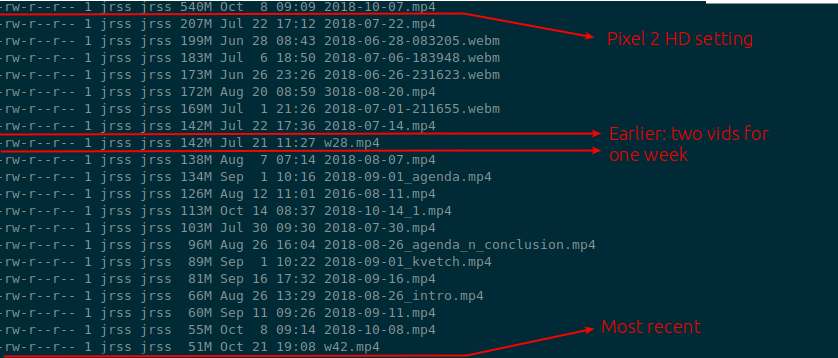
I reached the conclusion that my written journal is just better at keeping track of my experiences. Since I re-created the way I save my achieve files now, it also means the links from the journal to the events is never broken: I just have to make sure to refile an event from my “oh snap” thought-dump folder into the current week’s org file, and I’m good2.
I still record a short “weekly summary” on weekends, and now I find that I’m actually looking forward to it. These are now 10-20 minutes long videos in which I briefly go through my agenda and logged events and explain what happened while my memories of this week are still fresh. I then give the week a “theme,” like “agenda and conclusion” if I can.
This work sas a way for me to remember what happened far in the future if I want to reflect on my experiences but not look for something specific, or if I’m not sure what it is. It’s also a good way to reflect on the major events of the week after I had a weekend to slow down and process.
1 Note from 2024-09-26: today I live by subtasks and such Keywords in org-mode; they are a critical part of my organization
2 Note from 2024-09-26: today, I’m back to using a hand-written journal for summaries of personal reflections and emotions, while the more technical notes about the task are included there. Instructions for the future are kept in a separate notes folder, where I use Prot’s Denote to write them in a step-by-step format with visual aids as needed in org-mode.
Libre and clothes
When I write, I live in Emacs (with the awesome Solorized theme) inside org-mode.
With time, I found that org-mode has already made me a more efficient writer and note-taker. I write notes in every meeting now, whether it’s my"turn" or not. I write notes as I work on every solution and every problem I’m facing. I write first thing in the morning, usually about my org-related thoughts as I wake up, over a cup of Sumatra coffee (a little almond milk, one pack of sugar). Quite honestly, Org makes me feel good because it’s transparent. It’s an extension of my thoughts, continuing on one long line, uninterrupted before I stop to think a second and reflect on what I was thinking (X-q).
There’s no pretending in Org. No fancy text, fonts, or even images. Style is only applied to function. It’s a delicate balance which, with the Solirized theme, works extremely well (by the way, the story of the man who created Solorized is quite interesting and worth reading).
Alright, but every now and then, you need to present stuff, and this means you need to “dress up” so other people can talk to you and relate. The “Normals,” so to speak, do not understand my org-mode dedication and often give me concerned looks when I type away a single long line into a blank screen. The purity is empty, and the lack of buttons and distracting elements feels threatening without GUI guidance. Fine then, I can do fancy schmancy.
Most org-mode folk I’ve read and listened to talk about LaTex. In my case, that meant a full installation, which is huge—over 2GB. It’s not worth it for occasional usage, especially since I work in a Microsoft environment, and most people I’ll share with will need .docx or .ppt format anyway. So, for me, .odt seems like a better answer.
Two things are needed on my Emacs (version 25.2.1) for that:
-
Download and install Libre Office. It comes built-in with many personal desktop-geared Ubuntu distros, but in my version (Mint), I chose to opt out at the start. OK, no biggie, the full Libre Office suite is only 100MB, and I can do that. I see myself editing the occasional Word file or producing a PDF.
-
Add the following to .emacs to turn on .odt option in the export dispatcher:
`(eval-after-load "org" '(require 'ox-odt nil t))`
Now I can create the .dot file, which I can open in Libre Writer. Ooof. Hello word GUI, with weird paper-screen restrictions look. And the white, the white! It burns us! Overall, things look excellent, but if I want to change fonts, move around images, eye-candy, etc, now I can do it without leaving Linux. Then again, if I really need to produce a document, I might as well save my .odt in Writer to a .docx and remote into my work computer, where Microsoft reigns supreme. Options. We like having them, yes?
Another option I was considering is to use Typora, a pretty markdown writer. It comes with Pandoc and can handle Word and PDF files. Typora does not feel “Linux-free” to me and seems heavily inspired by different “minimalist” Mac world processing apps if that’s your thing. It probably won’t show up in your distros and requires installation from a PPA. I used Typora for a while for markdown, but we’ve parted ways.
I’m curious how this will stand out when I present my notes (since I’ve become the unofficial note-taker at work for the reasons mentioned above).