
I’ve been experimenting for about a week, and I think I will finally use the micro.blog macOS App. It’s still missing a few things, but the overall writing and posting experience is better than the web for me, finally.
How I handled projects in Emacs org-mode in 2024
I mentioned my projects file, now.org, is getting a little bit out of control. I’ve been playing around with a few ways to organize it since.
This is firstly a conceptional problem, one that has to do with how I organize things mentally before I can go into the technical level of how to tell Emacs to do it: a “what do I want to see?” question before a “how do I do it?” one.
Let me start by showing you what my project file looks like now:
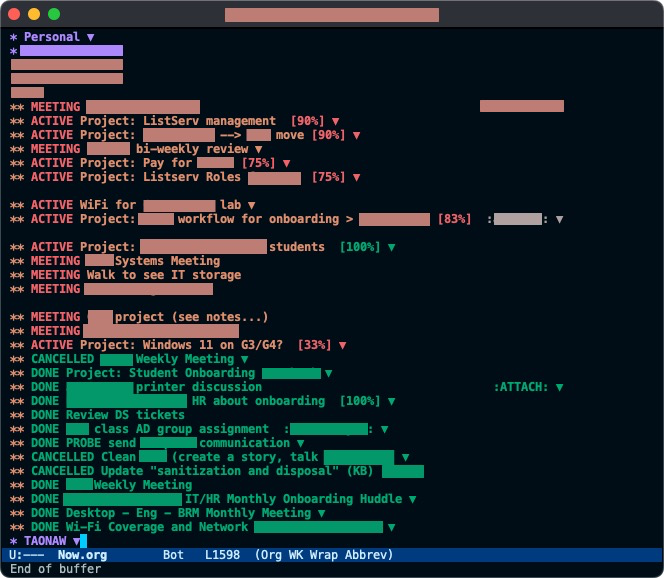
As you can see, a lot is going on.
One of the issues that are already fixed in this image is having the “DONE” or “CANCELLED” projects at the end of the file. This looks more organized than having them mixed with the “ACTIVE” projects all over, and it also allows me to focus on the things I’m currently working on as soon as I open the file.
By default, org-mode adds newly created headers at the bottom of the file. This means that every time I add another project or a meeting (an “ACTIVE” or “MEETING” in the image), it goes to the bottom of the list, right under the last header. I have to fix this manually by standing on the header I just created and moving it up with (M+↑) all the way to the top. However, I recently looked for a solution and found it: adding prepend: t to my capture templates. This reverses the order, so this problem will automatically sort itself out.
In my image, you can also see that some headers start as “Project:” and then the project’s name. This is redundant, and I hope to get rid of this soon because anything that is marked as “ACTIVE” is a project - which is defined by having sub-tasks (marked as “TODO”) under it; the idea is that a project is a large undertaking that has to be broken first to manageable parts:
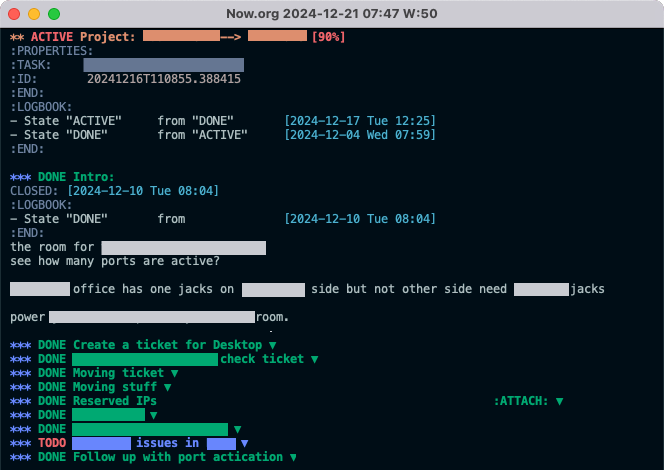
I write notes under each one of those sub-task headers (as you can see under the first one). I also find it helpful to attach relevant files (in this example, the Reserved IPs header has an Excel sheet containing details). I find that it’s easier to find files through Dired on Emacs than it is looking for them in my work’s OneDrive because they are tied to the project in the right place and arranged by date at the same time by my header’s ID (I changed that from random slugs to date-formatted IDs in the past). I can also jump directly to the directory with those files with C-c C-a F, and then use the open command on macOS (M-x !open) to open it with the default application.
Most of the projects in both images have a percent to completion next to them. Since I usually don’t know what a certain project requires to complete when I start it (what subtasks are required or how many), this is more of a general guide, if anything. Still, I like knowing how much of a project is already done. The percent cookie is an feature built into org-mode1.
Not in the images yet are emojis. I’m playing with the idea of including a small person emoji (🙋♂️) in “MEETING” headers to make them stand out a bit more. Meetings, as it turns out, are a special kind of project. It’s a place where a lot is going on at once, and I mark a “MEETING” as “DONE” only after all the actionable notes are distributed to tasks. Meetings can include tasks that start a whole new project or fit into existing ones. It’s also possible to meet about a certain project, so the “MEETING” header needs to be refiled under an existing project later as one of the subtasks. Meetings can take a long time to break down and follow up on, making them a project in themselves: this is why I found that giving them a dedicated keyword is a good way to handle them2.
Another thing I added to the projects’ capture template is clocking in as soon they’re created with :clock-in t. I often forget to clock out later, but I want to keep trying and build this as a habit. If I create a clock with a project, Emacs creates a :LOGBOOK: line for me with the time I started working, and I can correct the hours later. This is another area where it’s more of a guide than critical information: it’s often inaccurate (because I forget to clock out and then in again), and also, it doesn’t matter to me if I work half an hour more or half an hour less on something. It’s more of an indication of how much time a certain project took and how often I worked on it during the week.
Projects are also tagged with people I regularly work with. I know some folks (and I get to know many more) personally. When this happens, it’s helpful to see recognizable projects and tasks tagged with names I know. Since tags are hereditary in Emacs, an entire project can be tagged with a person if it’s required, but usually, I need different people for different subtasks of a certain project, depending on what I do. This is helpful to see how much I am working with a certain person, what on, and what that person does. I also have another file for people I work with, along with their names, their ID, their department, and what they do; it’s my useful “I know a guy” file I can tap into when I need someone to do something or when someone else asks me if I know how to handle a certain thing. I then can say, “I don’t, but I can find someone who can for you.” Helpful.
I can add a couple more things here, but this is probably a good place to stop. If you have any questions or suggestions, feel free to comment! I’d love to hear from you.
Footnotes
1: It’s also worth noting that half of the time, I need to “re-ACTIVE” a project marked as “DONE” because of a new development or because it would happen again and might become more of a routine. This means new “TODO” tasks are added below, and the percentage goes back down from 100%, so, yes, this is more a visual guide than anything concrete.
2: I use at least two (but sometimes more) datestamps in a “MEETING” project. The first time stamp is usually before the meeting takes place: this is where I write down a list of bullet points I want to bring up and discuss. The second timestamp takes place during the meeting (I type while people talk, and I ask them to slow down or wait if I need to (by the way, this is something that worked horribly for me with a notebook: my attempts and my attempts at something that looks like handwriting in meetings while rushing were laughable at best. I missed critical points that way). The second timestamp then becomes an indication to look for actionable items later. Since I write these notes in bullet points, it’s also easy to copy them back into Outlook with minor editing to leave a summary or meeting minutes later.
I don’t celebrate Christmas and I’m too grumpy for all this nonsense, but I’ll make an exception and wish you all who celebrate a Merry Christmas, now that it’s here and it’s not November anymore.
You welcome.
Huuumbug.
Nat knows me well 😂 An early holiday gift. 📷
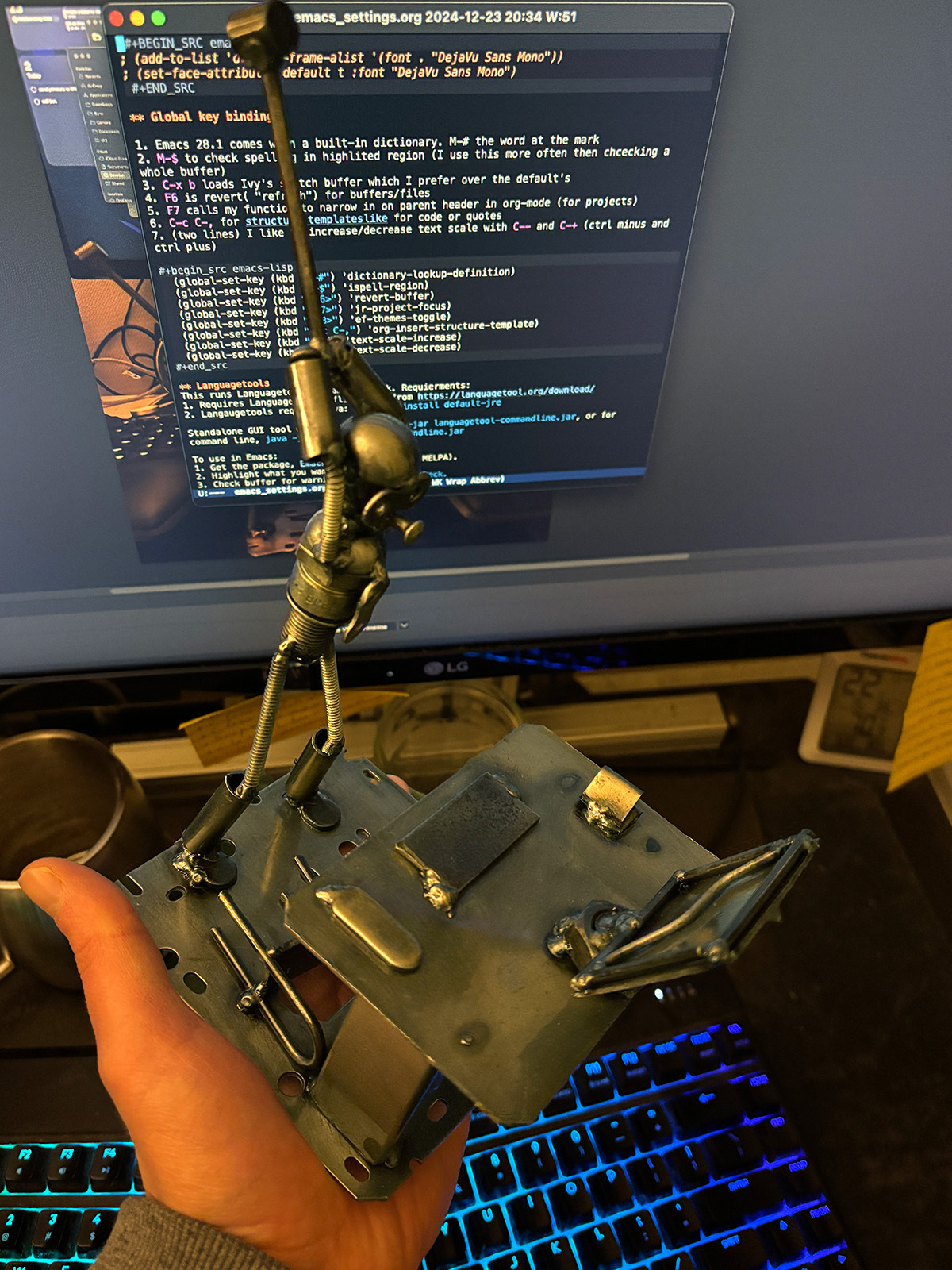
If you’re interested, it was made by a local collective of metal artists: www.metalpark.org
Phone mirroring is kind of growing on me. It has a few hiccups here and there, but otherwise worth it for something quick, like syncing an app or checking notifications.
Good thing I use YouTube music. Google is probably much better 🤦♂️ </sarcasm>

Currently reading: Artificial Condition by Martha Wells 📚
Part two connects well to part one, and offers additional depth. I’m enjoying exploring what it means to be human through the eyes of murderbot.
Mac folks, I have a question:
When you have more than one virtual desktop (they are called Desktop 1 and Desktop 2 when you press ctrl ↑), is there a way to select and move several windows at once into the other desktop? Right now I have to drag each one individually.
I missed This Week in Tech. What a good discussion on drones and TikTok/First Amendment! Good stuff.
Own your blog
I’m a bit behind on my web reading, but I still have a few (more) things to say about blogging and owning your own blog (or domain if you’re more of a techie and want to be technically correct). It’s based on what Kevin wrote about Substack & Blogging, which is based on Manu’s original piece about the same topic.
While both argue that Substack is bad for the soul, which I very much agree with (I close any link that opens to a Substack blog without giving it a second thought, even if it’s linked from a good source), that’s not the point I want to bring up again here. Instead, I want to make the case that if you don’t have a domain, you should get one today, and if you’re not planning on blogging, just create an about page and leave it up on the web until you want to write more.
In a world where everyone can broadcast their opinion by downloading an app on their phone and connecting to their existing online account (Google, Apple, or whatever), everyone should have a basic understanding of what a domain is and how to own one.
Really. It’s not that hard. Creating a web page can be as simple as writing something in Word, converting it to HTML, and saving it on your domain as yournameatyourdomain.com/index.html. Most places you’d buy a domain from would have an integrated graphical tool that will let you do just that. Just own the thing and pay for it. Don’t worry about creating a blog and programming and the fact that you’re not a computer person. Just be an internet citizen who has a domain, that’s all.
Of course, the problem is that everything on the web looks so polished and professional compared to what a single person without experience or knowledge can create. Well, that’s because “polished” and “professional” are concepts that big social media places blast you with until you accept them as the truth. I’ll save you from the “back in my day” speeches; just take a quick look instead.
There are places on the internet that are not free because free is mostly bad on the internet today (yes, I know it’s an oversimplification; sit this one down please Linux and FOSS folks, will ya?), but also don’t cost an arm and a leg that will work with you to get you a blog. You’re much better off paying $5 or $10 a month for a place that is yours than a free crapshoot that belongs to a corporation that will sell everything you give them in a heartbeat.
As for the how and where, both Manu and Kevin said you can ask them for help. I’m afraid I’m a bit more thorough, so I’d end up writing a guide, which I can’t commit to right now. Maybe I will if there are enough folks out there who need it.